
Compiling and Deploying NVIDIA GPU drivers on different Linux Distributions
This document explains how use NVIDIA GPU drivers with a custom kernel or a non-standard Linux distribution, using Garden Linux as the reference OS for all configurations and setup steps.
Some parts of this documentation are already implemented in the repository, and the Garden Linux configurations are already in place. This document serves as a reference for the overall approach and as a debugging guide if issues arise.
Introduction to the GPU Operator
Kubernetes provides access to special hardware resources such as NVIDIA GPUs, NICs, InfiniBand adapters, and other devices through its device plugin framework. However, configuring and managing nodes with these resources requires coordinating multiple software components such as drivers, container runtimes, libraries, and this can be a complex and error-prone process. The NVIDIA GPU Operator uses the Kubernetes operator framework to automate the management of all NVIDIA software components needed to provision GPUs. These components include the NVIDIA drivers (to enable CUDA), the Kubernetes device plugin for GPUs, the NVIDIA Container Toolkit, automatic node labeling via GFD, DCGM-based monitoring, and more.
The GPU Operator supports two driver installation modes:
- Downloading a pre-built driver image from the NVCR registry and installing the drivers inside the OS.
- Installing custom-built drivers from a custom location using a user-provided container image.
This document uses the second approach: building a custom container image to install NVIDIA drivers into the OS at a non-default path. This is particularly useful when the root filesystem is read-only.
If you would like to read more about the NVIDIA GPU operator and how to work with it, please read our Helm Deployment Guide.
NVIDIA Drivers and Open or Proprietary code
NVIDIA provides both proprietary and open kernel modules. This document uses the open kernel module.
Supported GPUs: Proprietary vs. Open Kernel Module
Not every GPU is compatible with the open-source GPU kernel modules.
For cutting-edge platforms such as NVIDIA Grace Hopper or NVIDIA Blackwell, the open-source kernel modules are required. The proprietary drivers are not supported on these platforms.
For newer GPUs from the Turing, Ampere, Ada Lovelace, or Hopper architectures, NVIDIA recommends switching to the open-source kernel modules.
For older GPUs from the Maxwell, Pascal, or Volta architectures, the open-source kernel modules are not compatible. Continue using the NVIDIA proprietary driver.
For mixed deployments containing both older and newer GPUs in the same machine, continue using the proprietary driver. For clusters containing a mixture of older and newer GPUs where each machine has only one type of GPU, then the GPU operator will by default choose the most appropriate kernel module type.
NVIDIA Driver Components
At a minimum, two components must be installed to support an NVIDIA GPU.
NVIDIA Driver Module
The kernel module that enables GPU support.
Fabric Manager
When a node contains multiple GPUs, Fabric Manager is required to enable GPU-to-GPU communication and to scale performance. It brings up NVSwitch or NVLink, the interconnects used for direct GPU-to-GPU communication.
Building the NVIDIA Driver
The following is one example of how to build the driver; other approaches are also valid.
The container image must:
- Download the driver installer
- Extract the driver
- Run the NVIDIA installer to install driver modules to a custom path
- Copy the required firmware files
- Download and install Fabric Manager for the target GPU architecture
Download the Driver Installer
The NVIDIA installer can be downloaded from https://www.nvidia.com/en-us/drivers/ - select Linux as the OS and choose the appropriate GPU series.
Ex: https://uk.download.nvidia.com/tesla/<driver-version>/NVIDIA-Linux-<arch>-<driver-version>.run
Extract the Driver
After downloading, extract the driver using the options below. This step extracts the contents without installing them.
chmod +x NVIDIA-Linux-<arch>-<driver-version>.run
./NVIDIA-Linux-<arch>-<driver-version>.run -x -s
#This extracts a folder with below name
cd ./NVIDIA-Linux-<arch>-<driver-version>
./nvidia-installer --kernel-module-type=open --kernel-name=<kernel-name> --kernel-install-path=<custom-path>/lib/modules/<kernel-name>
TIP
kernel-name: Name of the kernel where installer should expect kernel headers inside /usr/lib.- Make sure kernel headers match the system where the drivers will be installed finally. Otherwise loading driver module can result in error.
Copy Firmware Files
In addition to the driver module itself, firmware files must be copied to the node. When the driver module is loaded, it attempts to load the firmware. Ensure that firmware signing is disabled in the kernel configuration ( see Disable Firmware Signing), or sign the firmware files before deploying.
mkdir -p <custom-path>/lib/firmware/nvidia/<driver-version>/
cp NVIDIA-Linux-<arch>-<driver-version>/firmware/* <custom-path>/lib/firmware/nvidia/<driver-version>/
After these steps, the NVIDIA driver is available at the custom path.
Now, create a container image that bundles the drivers built above and includes an installation script that performs the following steps on startup (see Install Driver and Install Fabric Manager).
Install Driver
echo -n "<custom-path>/lib/firmware/" > /sys/module/firmware_class/parameters/path
modprobe -q -d "<custom-path>" nvidia
modprobe -q -d "<custom-path>" nvidia-uvm
<custom-path>/bin/nvidia-modprobe -u -m -c 0
Download and Install Fabric Manager
Before installing Fabric Manager, review the Architecture and Fabric Manager section to understand which components apply to your hardware.
Download Fabric Manager
wget -O /tmp/keyring.deb https://developer.download.nvidia.com/compute/cuda/repos/debian12/x86_64/cuda-keyring_1.1-1_all.deb && dpkg -i /tmp/keyring.deb
apt-get update
apt-get install -y -V nvidia-fabricmanager-<driver-major-version>=<driver-version>
Install Fabric Manager
For architectures using NVSwitch (e.g., Ampere):
sed -i 's/DAEMONIZE=1/DAEMONIZE=0/g' /etc/fabricmanager.cfg
sed -i 's/LOG_FILE_NAME=.*$/LOG_FILE_NAME=/g' /etc/fabricmanager.cfg
nv-fabricmanager -c /etc/fabricmanager.cfg
For architectures using NVLink/NVLSM (e.g. Blackwell):
apt-get install -y -V nvlsm
sed -i 's/DAEMONIZE=1/DAEMONIZE=0/g' /etc/fabricmanager.cfg
sed -i 's/LOG_FILE_NAME=.*$/LOG_FILE_NAME=/g' /etc/fabricmanager.cfg
/usr/bin/nvidia-fabricmanager-start.sh --mode start --fm-config-file /etc/fabricmanager.cfg
TIP
Driver download and container image creation are fully automated in this repository for supported Garden Linux versions.
Installing Drivers with the GPU Operator
The previous section produced a container image that compiles and installs the NVIDIA driver. The next step is to pass this image to the gpu-operator so it can install the driver on each node.
The GPU Operator is deployed via a Helm chart.
Update Helm Values
cdi:
  enabled: true
  default: true
toolkit:
  installDir: /opt/nvidia
driver:
  imagePullPolicy: Always
  usePrecompiled: true
  version: <driver-major-version>
  repository: <container-image-name>
Start the GPU Operator
helm repo add nvidia https://helm.ngc.nvidia.com/nvidia
helm repo update
helm upgrade --install gpu-operator nvidia/gpu-operator -n gpu-operator --create-namespace -f helm/gpu-operator-values.yaml
Once the GPU Operator is running, all of the following pods should be present:
kubectl get pods -n gpu-operator
gardener-node-feature-discovery-worker-*               1/1     Running
gpu-feature-discovery-*                                1/1     Running
nvidia-container-toolkit-daemonset-*                   1/1     Running
nvidia-cuda-validator-*                                0/1     Completed
nvidia-dcgm-exporter-*                                 1/1     Running
nvidia-device-plugin-daemonset-*                       1/1     Running
nvidia-driver-daemonset-6.12.72-amd64-gardenlinux0-*   1/1     Running
nvidia-mig-manager-*                                   1/1     Running
nvidia-operator-validator-*                            1/1     Running
Architecture and Fabric Manager
(Reference: https://docs.nvidia.com/datacenter/tesla/fabric-manager-user-guide/index.html)
Fabric Manager configures the NVSwitch memory fabrics to form a unified memory fabric across all participating GPUs and monitors the NVLinks that support the fabric. At a high level, Fabric Manager performs the following tasks:
Configures routing (for generations earlier than the fourth-generation NVSwitch) among NVSwitch ports.
Sets up GPU routing and port maps where applicable.
Coordinates with the GPU driver to initialize GPUs.
Monitors the fabric for NVLink and NVSwitch errors.
On systems that do not support Autonomous Link Initialization (ALI)-based NVLink training (first and second generation NVSwitch-based systems), FM also performs the following tasks:
Coordinates with the NVSwitch driver to initialize and train NVSwitch-to-NVSwitch NVLink interconnects.
Coordinates with the GPU driver to initialize and train NVSwitch-to-GPU NVLink interconnects.
Whether NVSwitch or NVLink is used depends on the GPU architecture.
Example: A100 (with NVSwitch): 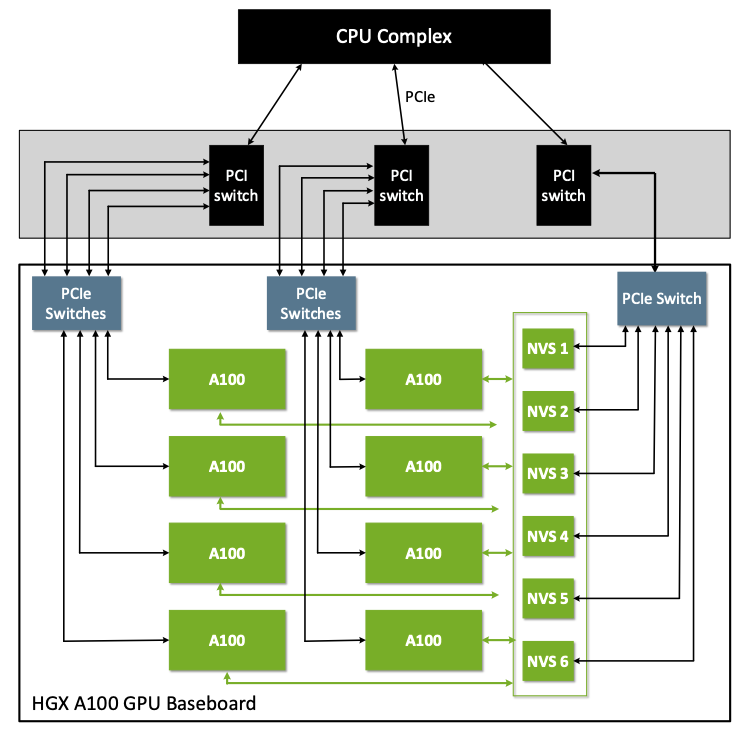
This can also be confirmed with lspci. TODO: Add snapshot from A100
Example: B200 (with NVLink): 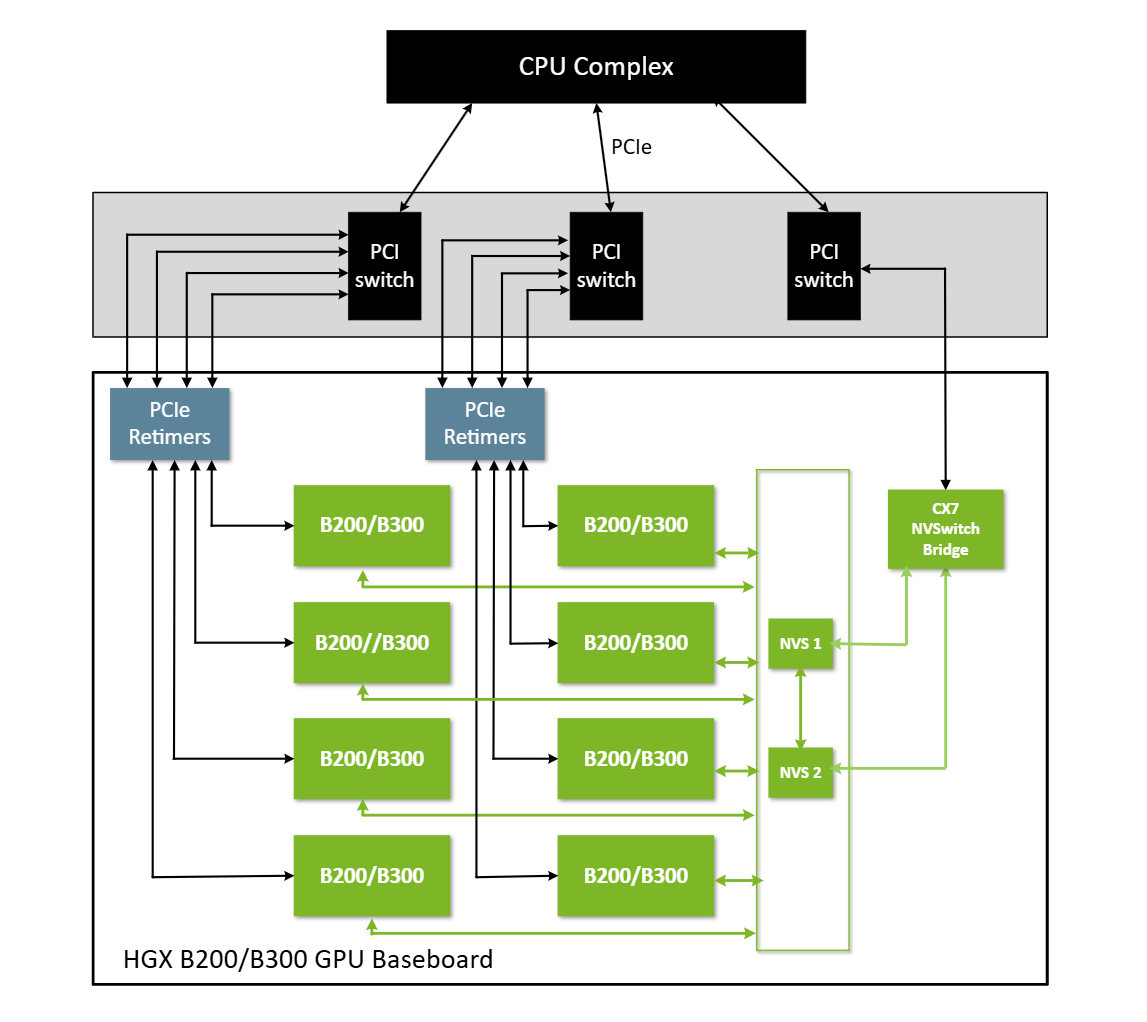
This can also be confirmed with lspci:
lspci | grep -i -E 'connect'Expected output:
ab:00.0 Infiniband controller: Mellanox Technologies MT2910 Family [ConnectX-7]Check NVLink Status (Inside a Node)
When Fabric Manager is not installed correctly, the fabric status shows "In Progress":
/run/nvidia/driver/bin/nvidia-smi -q -i 0 | grep -i -A 2 Fabric
         Fabric
            State                   : In Progress
            Status                  : N/A
After a successful Fabric Manager installation, the status should show "Completed":
/run/nvidia/driver/bin/nvidia-smi -q -i 0 | grep -i -A 2 Fabric
    Fabric
        State                                          : Completed
        Status                                         : Success
GPU Direct RDMA Support
GPUDirect RDMA is an NVIDIA technology that enables direct data exchange between GPUs and third-party peer devices over PCI Express. Supported peer devices include network interfaces such as NVIDIA ConnectX SmartNICs, BlueField DPUs, and video acquisition adapters.
GPU Direct RDMA can be enabled using either the NVIDIA peermem module or DMABuf. If using peermem, it must be built and loaded within the container image install script described above. Since NVIDIA recommends using the open kernel module with DMABuf, the steps below focus on enabling RDMA via DMABuf.
Enable Kernel Configuration
TIP
All of the configurations below can be enabled at once; the corresponding modules will only be loaded based on the interfaces present.
- Enable RDMA support in the kernel: see RDMA Configuration
- Enable DMABuf: see DMABuf Configuration
Network Interfaces
Verify which network interfaces are present using lspci, then refer to the appropriate section: EFA Support or Mlx Support.
Mellanox Interfaces
- Enable Mlx and InfiniBand drivers: see Mlx and InfiniBand Driver Configurations
EFA Interfaces
- On AWS clusters, EFA must be enabled: see EFA Configuration. In addition to the kernel configuration, the EFA plugin must also be started to support the EFA interface.
Once the kernel configurations are in place, append --set driver.rdma.useHostMofed=true to the Helm command described in the Start the GPU Operator section.
EFA Support
#EFA Interface
lspci | grep -i -E 'nvidia|efa'
Expected output:
10:1b.0 Ethernet controller: Amazon.com, Inc. Elastic Fabric Adapter (EFA)
10:1c.0 3D controller: NVIDIA Corporation GA100 [A100 SXM4 40GB] (rev a1)
10:1d.0 3D controller: NVIDIA Corporation GA100 [A100 SXM4 40GB] (rev a1)
20:1b.0 Ethernet controller: Amazon.com, Inc. Elastic Fabric Adapter (EFA)
20:1c.0 3D controller: NVIDIA Corporation GA100 [A100 SXM4 40GB] (rev a1)
20:1d.0 3D controller: NVIDIA Corporation GA100 [A100 SXM4 40GB] (rev a1)
80:1a.0 Bridge: NVIDIA Corporation GA100 [A100 NVSwitch] (rev a1)
80:1b.0 Bridge: NVIDIA Corporation GA100 [A100 NVSwitch] (rev a1)
80:1c.0 Bridge: NVIDIA Corporation GA100 [A100 NVSwitch] (rev a1)
80:1d.0 Bridge: NVIDIA Corporation GA100 [A100 NVSwitch] (rev a1)
80:1e.0 Bridge: NVIDIA Corporation GA100 [A100 NVSwitch] (rev a1)
80:1f.0 Bridge: NVIDIA Corporation GA100 [A100 NVSwitch] (rev a1)
90:1b.0 Ethernet controller: Amazon.com, Inc. Elastic Fabric Adapter (EFA)
90:1c.0 3D controller: NVIDIA Corporation GA100 [A100 SXM4 40GB] (rev a1)
90:1d.0 3D controller: NVIDIA Corporation GA100 [A100 SXM4 40GB] (rev a1)
a0:1b.0 Ethernet controller: Amazon.com, Inc. Elastic Fabric Adapter (EFA)
a0:1b.0 3D controller: NVIDIA Corporation GA100 [A100 SXM4 40GB] (rev a1)
a0:1b.0 3D controller: NVIDIA Corporation GA100 [A100 SXM4 40GB] (rev a1)
Reference Screenshot
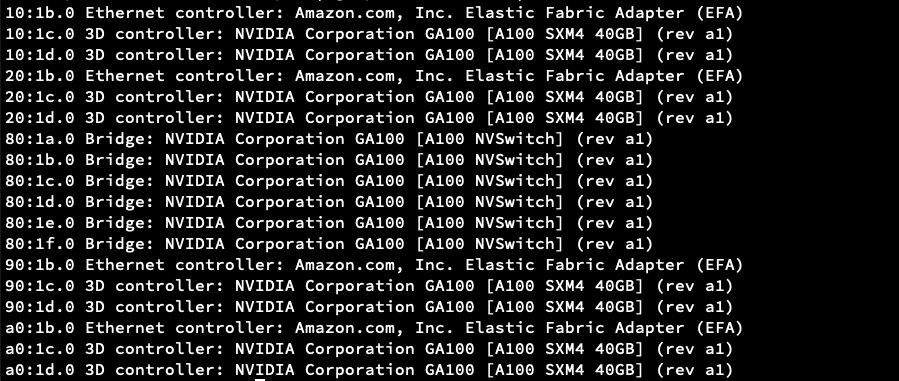
If the EFA device does not appear in the lspci output, the AWS instance reservation is likely misconfigured. The EFA network interface type must be enabled when creating or reserving the instance. Refer to https://docs.aws.amazon.com/AWSEC2/latest/UserGuide/efa-start-nccl.html for details.
Mlx Support
# Mellanox Interface
lspci | grep -i -E 'mellanox'
Expected output:
18:00.0 Ethernet controller: Mellanox Technologies MT43244 BlueField-3 integrated ConnectX-7 network controller (rev 01)
18:00.1 DMA controller: Mellanox Technologies MT43244 BlueField-3 SoC Management Interface (rev 01)
3e:00.0 Ethernet controller: Mellanox Technologies MT43244 BlueField-3 integrated ConnectX-7 network controller (rev 01)
3e:00.1 DMA controller: Mellanox Technologies MT43244 BlueField-3 SoC Management Interface (rev 01)
ab:00.0 Infiniband controller: Mellanox Technologies MT2910 Family [ConnectX-7]
Kernel Configuration
Disable Firmware Signing
CONFIG_IMA_APPRAISE_REQUIRE_FIRMWARE_SIGS=n
RDMA Configuration
CONFIG_RDMA_CORE=y
Enable Soft RoCE
CONFIG_INFINIBAND_VIRT_DMA=y
CONFIG_RDMA_RXE=m
CONFIG_INFINIBAND_IPOIB=m
CONFIG_INFINIBAND_IPOIB_CM=y
CONFIG_NET_UDP_TUNNEL=y
Mlx and Infiniband Driver Configurations
CONFIG_MLX4_EN=m
CONFIG_MLX4_EN_DCB=y
CONFIG_MLX4_CORE=m
CONFIG_MLX4_DEBUG=y
CONFIG_MLX4_CORE_GEN2=y
CONFIG_MLX5_CORE=m
CONFIG_MLX5_FPGA=y
CONFIG_MLX5_CORE_EN=y
CONFIG_MLX5_EN_ARFS=y
CONFIG_MLX5_EN_RXNFC=y
CONFIG_MLX5_MPFS=y
CONFIG_MLX5_ESWITCH=y
CONFIG_MLX5_BRIDGE=y
CONFIG_MLX5_CLS_ACT=y
CONFIG_MLX5_TC_CT=y
CONFIG_MLX5_TC_SAMPLE=y
CONFIG_MLX5_CORE_EN_DCB=y
CONFIG_MLX5_CORE_IPOIB=y
CONFIG_MLX5_SW_STEERING=y
CONFIG_MLX5_HW_STEERING=y
CONFIG_MLXFW=m
CONFIG_MLX4_INFINIBAND=m
CONFIG_MLX5_INFINIBAND=m
CONFIG_INFINIBAND_USER_ACCESS=m
CONFIG_INFINIBAND_ON_DEMAND_PAGING=y
CONFIG_INFINIBAND_ADDR_TRANS=y
EFA Configuration
CONFIG_INFINIBAND_USER_ACCESS=m
CONFIG_INFINIBAND_ON_DEMAND_PAGING=y
CONFIG_INFINIBAND_ADDR_TRANS=y
CONFIG_INFINIBAND_EFA=m
CONFIG_INFINIBAND_RDMAVT=m
DMABuf Configuration
CONFIG_DMADEVICES=y
CONFIG_VIRT_DRIVERS=y
CONFIG_PCI_P2PDMA=y
CONFIG_DMABUF_MOVE_NOTIFY=y
CONFIG_UDMABUF=y
CONFIG_HMM_MIRROR=y
CONFIG_DEVICE_PRIVATE=y
Network Configuration
To run large LLM models, the MTU must be set to 9000 on all interfaces.
Memlock Limit
To support LLM workloads, the memory lock limit must be set to unlimited:
/etc/systemd/system/containerd.service.d/override.conf
[Service]
LimitMEMLOCK=infinity
Restart the daemon to apply the change:
systemctl daemon-reload
systemctl restart containerd
NCCL
Dockerfile to Build a Container Image with NCCL, nccl-test, and EFA Support
NCCL Container Image
FROM nvidia/cuda:12.9.1-devel-ubuntu22.04 AS base
ENV DEBIAN_FRONTEND=noninteractive

RUN apt-get -qq update && \
      apt-get -qq install -y \
      --allow-change-held-packages \
      --no-install-recommends \
      --allow-downgrades \
      build-essential \
      wget devscripts debhelper fakeroot pkg-config check openssh-server \
      git libtool autoconf automake curl pciutils \
      udev \
      libnl-3-200 \
      libnl-3-dev \
      libnl-route-3-200 \
      libnl-route-3-dev \
      libudev-dev \
      python3-docutils \
      libhwloc15 \
      libhwloc-dev \
      libevent-dev \
      libpmix-dev

RUN cd /tmp && \
      curl -O https://efa-installer.amazonaws.com/aws-efa-installer-latest.tar.gz && \
      tar -xf aws-efa-installer-latest.tar.gz && \
      cd aws-efa-installer && \
      dpkg -i DEBS/UBUNTU2204/x86_64/rdma-core/libibverbs1_61.0-1_amd64.deb \
              DEBS/UBUNTU2204/x86_64/rdma-core/ibverbs-providers_61.0-1_amd64.deb \
              DEBS/UBUNTU2204/x86_64/rdma-core/librdmacm1_61.0-1_amd64.deb \
              DEBS/UBUNTU2204/x86_64/rdma-core/rdma-core_61.0-1_amd64.deb \
              DEBS/UBUNTU2204/x86_64/rdma-core/libibverbs-dev_61.0-1_amd64.deb \
              DEBS/UBUNTU2204/x86_64/rdma-core/librdmacm-dev_61.0-1_amd64.deb && \
      apt-get install -f -y && \
      ./efa_installer.sh -y --skip-kmod --skip-limit-conf --no-verify --mpi=openmpi4 && \
      dpkg -i DEBS/UBUNTU2204/x86_64/libfabric1-aws_2.4.0amzn3.0_amd64.deb \
              DEBS/UBUNTU2204/x86_64/libfabric-aws-bin_2.4.0amzn3.0_amd64.deb && \
      apt-get install -f -y && \
      dpkg -r libnccl-ofi-ngc-v3 2>/dev/null || true && \
      dpkg -i DEBS/UBUNTU2204/x86_64/libnccl-ofi_1.19.0-1_amd64.deb && \
      apt-get install -f -y && \
      dpkg -i DEBS/UBUNTU2204/x86_64/efa-profile_1.7_all.deb && \
      apt-get install -f -y && \
      dpkg -i DEBS/UBUNTU2204/x86_64/openmpi40-aws_4.1.7-1_amd64.deb && \
      apt-get install -f -y && \
      cd / && \
      rm -rf /tmp/aws-efa-installer*

RUN ldconfig

# Rebuild libfabric v2.4.0 with CUDA DMABUF MR patch (enables GDR without nvidia-peermem)
COPY efa_dmabuf.patch /tmp/
RUN git clone --depth=1 --branch v2.4.0 \
        https://github.com/ofiwg/libfabric.git /tmp/libfabric-src && \
    cd /tmp/libfabric-src && \
    git apply /tmp/efa_dmabuf.patch && \
    ./autogen.sh && \
    ./configure \
        --prefix=/opt/amazon/efa \
        --enable-efa=yes \
        --with-cuda=/usr/local/cuda \
        --disable-opx \
        --disable-usnic \
        --disable-verbs && \
    make -j$(nproc) install && \
    rm -rf /tmp/libfabric-src /tmp/efa_dmabuf.patch

FROM base AS libnccl2

ARG TARGET_NCCL_VERSION='2.28.3-1'

RUN mkdir /tmp/build && \
      cd /tmp/build && \
      wget -qO- "https://github.com/NVIDIA/nccl/archive/refs/tags/v${TARGET_NCCL_VERSION}.tar.gz" \
      | tar --strip-components=1 -xzf - && \
      make -j20 pkg.debian.build NVCC_GENCODE="-gencode=arch=compute_80,code=sm_80 -gencode=arch=compute_90,code=sm_90 -gencode=arch=compute_100,code=sm_100" && \
      mkdir /tmp/libnccl2 && \
      mv build/pkg/deb/libnccl*.deb /tmp/libnccl2/ && \
      rm -rf /tmp/build

FROM base AS base-amd64
RUN --mount=type=bind,from=libnccl2,source=/tmp/libnccl2,target=/tmp/install \
      cd /tmp/install && dpkg -i *.deb

FROM base-amd64

ENV NCCL_TESTS_COMMITISH=2535da805b34e96d1dc08be66289be1a6d57f5ad

WORKDIR /opt/nccl-tests

RUN wget -q -O - https://github.com/NVIDIA/nccl-tests/archive/${NCCL_TESTS_COMMITISH}.tar.gz \
      | tar --strip-components=1 -xzf - && \
      make -j20 MPI=1 MPI_HOME=/opt/amazon/openmpi \
      NCCL_HOME=/usr/lib/x86_64-linux-gnu \
      CUDA_HOME=/usr/local/cuda
EFA with DMABuf has issues in libfabric, hence patch below is applied in Containerfile.
diff --git a/prov/efa/src/efa_mr.c b/prov/efa/src/efa_mr.c
index fc62d21..f4804f0 100644
--- a/prov/efa/src/efa_mr.c
+++ b/prov/efa/src/efa_mr.c
@@ -544,6 +544,25 @@ static struct ibv_mr *efa_mr_reg_ibv_mr(struct efa_mr *efa_mr, struct fi_mr_attr
 	 * TODO: need such fallback for cuda as well when
 	 * FI_CUDA_API_PERMITTED is true
 	 */
+#if HAVE_EFA_DMABUF_MR && HAVE_CUDA
+	if (efa_mr_is_cuda(efa_mr)) {
+		ret = ofi_hmem_get_dmabuf_fd(
+			efa_mr->peer.iface, mr_attr->mr_iov->iov_base,
+			mr_attr->mr_iov->iov_len, &dmabuf_fd, &offset);
+
+		if (ret == FI_SUCCESS) {
+			/* Success => invoke ibv_reg_dmabuf_mr */
+			ibv_mr = efa_mr_reg_ibv_dmabuf_mr(
+				efa_mr->domain->ibv_pd, offset,
+				mr_attr->mr_iov->iov_len,
+				(uint64_t) mr_attr->mr_iov->iov_base, dmabuf_fd,
+				access);
+			(void) ofi_hmem_put_dmabuf_fd(efa_mr->peer.iface,
+						      dmabuf_fd);
+			return ibv_mr;
+		}
+	}
+#endif
 	if (efa_mr_is_neuron(efa_mr)) {
 		ret = ofi_hmem_get_dmabuf_fd(
 				efa_mr->peer.iface,
YAML File to Start the NCCL Container
Pod Configuration File
apiVersion: kubeflow.org/v2beta1
kind: MPIJob
metadata:
  name: nccl-test-72-gb200-8n-roce
spec:
  slotsPerWorker: 8
  runPolicy:
    cleanPodPolicy: Running
  mpiReplicaSpecs:
    Launcher:
      replicas: 1
      template:
        metadata:
        spec:
          hostNetwork: true
          dnsPolicy: ClusterFirstWithHostNet
          containers:
            - name: nccl
              image: ghcr.io/coreweave/nccl-tests:13.1.0-devel-ubuntu24.04-nccl2.29.2-1-9dd6f94
              command: [ "/bin/bash", "-c" ]
              args:
                - |
                  # Copy SSH keys with correct permissions
                  mount -o remount,rw /root/.ssh
                  cp -rL /mnt/ssh-secret/* /root/.ssh/
                  chmod 700 /root/.ssh
                  chmod 600 /root/.ssh/id_rsa
                  chmod 644 /root/.ssh/id_rsa.pub /root/.ssh/authorized_keys 2>/dev/null || true
                  sed -i 's/^Port 22$/Port 2222/; s/^#Port 22$/Port 2222/' /etc/ssh/sshd_config
                  sleep infinity
              env:
                - name: OMPI_ALLOW_RUN_AS_ROOT
                  value: "1"
                - name: OMPI_ALLOW_RUN_AS_ROOT_CONFIRM
                  value: "1"
                - name: OMPI_MCA_plm_rsh_args
                  value: "-p 2222"
                - name: LD_LIBRARY_PATH
                  value: "/usr/local/cuda/lib64:/run/nvidia/driver/lib:/run/nvidia/driver/usr/lib/x86_64-linux-gnu:${LD_LIBRARY_PATH}"
              resources:
                requests:
                  cpu: 2
                  memory: 32Gi
                limits:
                  memory: 64Gi
              securityContext:
                privileged: true
              volumeMounts:
                - name: ssh-secret
                  mountPath: /mnt/ssh-secret
                  readOnly: true
                - name: nvidia-driver-bin
                  mountPath: /usr/local/nvidia/bin
                  readOnly: true
                - name: nvidia-driver-lib
                  mountPath: /run/nvidia/driver
                  readOnly: true
                - name: dshm
                  mountPath: /dev/shm
          volumes:
            - name: ssh-secret
              secret:
                secretName: nccl-test-72-gb200-8n-roce-ssh
                defaultMode: 0600
            - name: nvidia-driver-bin
              hostPath:
                path: /run/nvidia/driver/bin
                type: Directory
            - name: nvidia-driver-lib
              hostPath:
                path: /run/nvidia/driver
                type: Directory
            - name: dshm
              emptyDir:
                medium: Memory
                sizeLimit: 300Gi
          restartPolicy: Never

    Worker:
      replicas: 2
      template:
        metadata:
          labels:
            metadata.coreweave.cloud/job: nccl-test
          annotations:
            io.kubernetes.cri.shm-size: "500Gi"
        spec:
          hostNetwork: true
          dnsPolicy: ClusterFirstWithHostNet
          affinity:
            podAntiAffinity:
              requiredDuringSchedulingIgnoredDuringExecution:
                - labelSelector:
                    matchLabels:
                      training.kubeflow.org/job-name: nccl-test-72-gb200-8n-roce
                      training.kubeflow.org/replica-type: worker
                  topologyKey: kubernetes.io/hostname
          containers:
            - name: nccl
              image: ghcr.io/coreweave/nccl-tests:13.1.0-devel-ubuntu24.04-nccl2.29.2-1-9dd6f94
              command: [ "/bin/bash", "-c" ]
              args:
                - |
                  mount -o remount,rw /root/.ssh
                  cp -rL /mnt/ssh-secret/* /root/.ssh/
                  chmod 700 /root/.ssh
                  chmod 600 /root/.ssh/id_rsa
                  chmod 644 /root/.ssh/id_rsa.pub /root/.ssh/authorized_keys 2>/dev/null || true

                  sed -i 's/^Port 22$/Port 2222/; s/^#Port 22$/Port 2222/' /etc/ssh/sshd_config
                  service ssh start && sleep infinity
              env:
                - name: LD_LIBRARY_PATH
                  value: "/usr/local/cuda/lib64:/run/nvidia/driver/lib:/run/nvidia/driver/usr/lib/x86_64-linux-gnu:${LD_LIBRARY_PATH}"
              resources:
                requests:
                  nvidia.com/gpu: 8
                  memory: 1500Gi
                limits:
                  nvidia.com/gpu: 8
                  memory: 1500Gi
              volumeMounts:
                - mountPath: /dev/shm
                  name: dshm
                - mountPath: /dev/infiniband
                  name: infiniband
                - name: ssh-secret
                  mountPath: /mnt/ssh-secret
                  readOnly: true
                - name: nvidia-driver-bin
                  mountPath: /usr/local/nvidia/bin
                  readOnly: true
                - name: nvidia-driver-lib
                  mountPath: /run/nvidia/driver
                  readOnly: true
              securityContext:
                privileged: true
          volumes:
            - emptyDir:
                medium: Memory
                sizeLimit: 500Gi
              name: dshm
            - hostPath:
                path: /dev/infiniband
                type: Directory
              name: infiniband
            - name: ssh-secret
              secret:
                secretName: nccl-test-72-gb200-8n-roce-ssh
                defaultMode: 0600
            - name: nvidia-driver-bin
              hostPath:
                path: /run/nvidia/driver/bin
                type: Directory
            - name: nvidia-driver-lib
              hostPath:
                path: /run/nvidia/driver
                type: Directory
WARNING
This test uses host networking in privileged mode, which is less secure. For production use, SR-IOV with the NVIDIA Network Operator is recommended instead.
Basic RDMA Communication Between Nodes
RDMA Test Pod Configuration
Node1
apiVersion: v1
kind: Pod
metadata:
  name: rdma-test-node1
spec:
  nodeSelector:
    kubernetes.io/hostname: <node1>
  restartPolicy: OnFailure
  hostNetwork: true
  containers:
    - name: rdma-test
      image: mellanox/cuda-perftest
      securityContext:
        privileged: true
        capabilities:
          add: [ "IPC_LOCK" ]
      resources:
        limits:
          nvidia.com/gpu: 1
        requests:
          nvidia.com/gpu: 1
      volumeMounts:
        - name: dev-infiniband
          mountPath: /dev/infiniband
        - name: sys
          mountPath: /sys
      command: [ "sleep", "infinity" ]
  volumes:
    - name: dev-infiniband
      hostPath:
        path: /dev/infiniband
        type: DirectoryOrCreate
    - name: sys
      hostPath:
        path: /sys
        type: Directory
Node2
apiVersion: v1
kind: Pod
metadata:
  name: rdma-test-node2
spec:
  nodeSelector:
    kubernetes.io/hostname: <node2>
  restartPolicy: OnFailure
  hostNetwork: true
  containers:
    - name: rdma-test
      image: mellanox/cuda-perftest
      securityContext:
        privileged: true
        capabilities:
          add: [ "IPC_LOCK" ]
      resources:
        limits:
          nvidia.com/gpu: 1
        requests:
          nvidia.com/gpu: 1
      volumeMounts:
        - name: dev-infiniband
          mountPath: /dev/infiniband
        - name: sys
          mountPath: /sys
      command: [ "sleep", "infinity" ]
  volumes:
    - name: dev-infiniband
      hostPath:
        path: /dev/infiniband
        type: DirectoryOrCreate
    - name: sys
      hostPath:
        path: /sys
        type: Directory
Start Pods
kubectl apply -f <rdma_test_node1.yaml> -n rdma-test
kubectl apply -f <rdma_test_node2.yaml> -n rdma-test
Run the Test Inside the Pod
In Terminal 1 (server):
kubectl exec -it rdma-test-node1 -n rdma-test -- ib_write_bw --use_cuda=0 --use_cuda_dmabuf \
    -d mlx5_0 -a -F --report_gbits -q 1
Output
************************************
* Waiting for client to connect... *
************************************
In Terminal 2 (client):
kubectl exec -it rdma-test-node2 -n rdma-test -- ib_write_bw --use_cuda=0 --use_cuda_dmabuf \
    -d mlx5_0 -a -F --report_gbits -q 1 <ip_address>
Output
---------------------------------------------------------------------------------------
                    RDMA_Write BW Test
 Dual-port       : OFF		Device         : mlx5_0
 Number of qps   : 1		Transport type : IB
 Connection type : RC		Using SRQ      : OFF
 PCIe relax order: ON
 ibv_wr* API     : ON
 CQ Moderation   : 1
 Mtu             : 4096[B]
 Link type       : Ethernet
 GID index       : 3
 Max inline data : 0[B]
 rdma_cm QPs	 : OFF
 Data ex. method : Ethernet
---------------------------------------------------------------------------------------
 local address: LID 0000 QPN 0x0e2e PSN 0xf3aa42 RKey 0x186dc0 VAddr 0x007fad682b4000
 GID: 00:00:00:00:00:00:00:00:00:00:255:255:10:00:01:11
 remote address: LID 0000 QPN 0x1d81 PSN 0xe9c73e RKey 0x186d4a VAddr 0x007f62137fa000
 GID: 00:00:00:00:00:00:00:00:00:00:255:255:10:00:01:12
---------------------------------------------------------------------------------------
 #bytes     #iterations    BW peak[Gb/sec]    BW average[Gb/sec]   MsgRate[Mpps]        BW min[Gb/sec]
 65536      5000             368.67             368.48 		   0.702829		  0.00
---------------------------------------------------------------------------------------
The test can be repeated for other RDMA interfaces.
Run All-Reduce Test
Start the MPI Operator
kubectl apply -f https://raw.githubusercontent.com/kubeflow/mpi-operator/v0.3.0/deploy/v2beta1/mpi-operator.yamlmpi-operator must be allowed to create pods, hence we need to apply below ClusterRole
apiVersion: v1
kind: ServiceAccount
metadata:
  name: mpi-operator
  namespace: mpi-operator
---
apiVersion: rbac.authorization.k8s.io/v1
kind: ClusterRole
metadata:
  name: mpi-operator
rules:
# Core resources
- apiGroups:
  - ""
  resources:
  - pods
  - pods/exec
  - pods/status
  - services
  - endpoints
  - persistentvolumeclaims
  - events
  - configmaps
  - secrets
  - serviceaccounts
  verbs:
  - create
  - delete
  - get
  - list
  - patch
  - update
  - watch
# Apps resources
- apiGroups:
  - apps
  resources:
  - deployments
  - daemonsets
  - replicasets
  - statefulsets
  verbs:
  - create
  - delete
  - get
  - list
  - patch
  - update
  - watch
# Batch resources
- apiGroups:
  - batch
  resources:
  - jobs
  - cronjobs
  verbs:
  - create
  - delete
  - get
  - list
  - patch
  - update
  - watch
# Kubeflow resources
- apiGroups:
  - kubeflow.org
  resources:
  - mpijobs
  - mpijobs/status
  - mpijobs/finalizers
  verbs:
  - create
  - delete
  - get
  - list
  - patch
  - update
  - watch
# RBAC resources
- apiGroups:
  - rbac.authorization.k8s.io
  resources:
  - roles
  - rolebindings
  verbs:
  - create
  - delete
  - get
  - list
  - patch
  - update
  - watch
# Coordination resources (for leader election)
- apiGroups:
  - coordination.k8s.io
  resources:
  - leases
  verbs:
  - create
  - delete
  - get
  - list
  - patch
  - update
  - watch
# Scheduling resources (for PriorityClasses)
- apiGroups:
  - scheduling.k8s.io
  resources:
  - priorityclasses
  verbs:
  - get
  - list
  - watch
# Policy resources
- apiGroups:
  - policy
  resources:
  - poddisruptionbudgets
  verbs:
  - create
  - delete
  - get
  - list
  - patch
  - update
  - watch
---
apiVersion: rbac.authorization.k8s.io/v1
kind: ClusterRoleBinding
metadata:
  name: mpi-operator
roleRef:
  apiGroup: rbac.authorization.k8s.io
  kind: ClusterRole
  name: mpi-operator
subjects:
- kind: ServiceAccount
  name: mpi-operator
  namespace: mpi-operator
Configuration File
Pod Definition File
apiVersion: kubeflow.org/v2beta1
kind: MPIJob
metadata:
  name: nccl-test-72-gb200-8n-roce
spec:
  slotsPerWorker: 8
  runPolicy:
    cleanPodPolicy: Running
  mpiReplicaSpecs:
    Launcher:
      replicas: 1
      template:
        metadata:
        spec:
          hostNetwork: true
          dnsPolicy: ClusterFirstWithHostNet
          containers:
            - name: nccl
              image: ghcr.io/coreweave/nccl-tests:13.1.0-devel-ubuntu24.04-nccl2.29.2-1-9dd6f94
              command: [ "/bin/bash", "-c" ]
              args:
                - |
                  # Copy SSH keys with correct permissions
                  mount -o remount,rw /root/.ssh
                  cp -rL /mnt/ssh-secret/* /root/.ssh/
                  chmod 700 /root/.ssh
                  chmod 600 /root/.ssh/id_rsa
                  chmod 644 /root/.ssh/id_rsa.pub /root/.ssh/authorized_keys 2>/dev/null || true
                  sed -i 's/^Port 22$/Port 2222/; s/^#Port 22$/Port 2222/' /etc/ssh/sshd_config
                  sleep infinity
              env:
                - name: OMPI_ALLOW_RUN_AS_ROOT
                  value: "1"
                - name: OMPI_ALLOW_RUN_AS_ROOT_CONFIRM
                  value: "1"
                - name: OMPI_MCA_plm_rsh_args
                  value: "-p 2222"
                - name: LD_LIBRARY_PATH
                  value: "/usr/local/cuda/lib64:/run/nvidia/driver/lib:/run/nvidia/driver/usr/lib/x86_64-linux-gnu:${LD_LIBRARY_PATH}"
              resources:
                requests:
                  cpu: 2
                  memory: 32Gi
                limits:
                  memory: 64Gi
              securityContext:
                privileged: true
              volumeMounts:
                - name: ssh-secret
                  mountPath: /mnt/ssh-secret
                  readOnly: true
                - name: nvidia-driver-bin
                  mountPath: /usr/local/nvidia/bin
                  readOnly: true
                - name: nvidia-driver-lib
                  mountPath: /run/nvidia/driver
                  readOnly: true
                - name: dshm
                  mountPath: /dev/shm
          volumes:
            - name: ssh-secret
              secret:
                secretName: nccl-test-72-gb200-8n-roce-ssh
                defaultMode: 0600
            - name: nvidia-driver-bin
              hostPath:
                path: /run/nvidia/driver/bin
                type: Directory
            - name: nvidia-driver-lib
              hostPath:
                path: /run/nvidia/driver
                type: Directory
            - name: dshm
              emptyDir:
                medium: Memory
                sizeLimit: 300Gi
          restartPolicy: Never

    Worker:
      replicas: 2
      template:
        metadata:
          labels:
            metadata.coreweave.cloud/job: nccl-test
          annotations:
            io.kubernetes.cri.shm-size: "500Gi"
        spec:
          hostNetwork: true
          dnsPolicy: ClusterFirstWithHostNet
          affinity:
            podAntiAffinity:
              requiredDuringSchedulingIgnoredDuringExecution:
                - labelSelector:
                    matchLabels:
                      training.kubeflow.org/job-name: nccl-test-72-gb200-8n-roce
                      training.kubeflow.org/replica-type: worker
                  topologyKey: kubernetes.io/hostname
          containers:
            - name: nccl
              image: ghcr.io/coreweave/nccl-tests:13.1.0-devel-ubuntu24.04-nccl2.29.2-1-9dd6f94
              command: [ "/bin/bash", "-c" ]
              args:
                - |
                  mount -o remount,rw /root/.ssh
                  cp -rL /mnt/ssh-secret/* /root/.ssh/
                  chmod 700 /root/.ssh
                  chmod 600 /root/.ssh/id_rsa
                  chmod 644 /root/.ssh/id_rsa.pub /root/.ssh/authorized_keys 2>/dev/null || true

                  sed -i 's/^Port 22$/Port 2222/; s/^#Port 22$/Port 2222/' /etc/ssh/sshd_config
                  service ssh start && sleep infinity
              env:
                - name: LD_LIBRARY_PATH
                  value: "/usr/local/cuda/lib64:/run/nvidia/driver/lib:/run/nvidia/driver/usr/lib/x86_64-linux-gnu:${LD_LIBRARY_PATH}"
              resources:
                requests:
                  nvidia.com/gpu: 8
                  memory: 1500Gi
                limits:
                  nvidia.com/gpu: 8
                  memory: 1500Gi
              volumeMounts:
                - mountPath: /dev/shm
                  name: dshm
                - mountPath: /dev/infiniband
                  name: infiniband
                - name: ssh-secret
                  mountPath: /mnt/ssh-secret
                  readOnly: true
                - name: nvidia-driver-bin
                  mountPath: /usr/local/nvidia/bin
                  readOnly: true
                - name: nvidia-driver-lib
                  mountPath: /run/nvidia/driver
                  readOnly: true
              securityContext:
                privileged: true
          volumes:
            - emptyDir:
                medium: Memory
                sizeLimit: 500Gi
              name: dshm
            - hostPath:
                path: /dev/infiniband
                type: Directory
              name: infiniband
            - name: ssh-secret
              secret:
                secretName: nccl-test-72-gb200-8n-roce-ssh
                defaultMode: 0600
            - name: nvidia-driver-bin
              hostPath:
                path: /run/nvidia/driver/bin
                type: Directory
            - name: nvidia-driver-lib
              hostPath:
                path: /run/nvidia/driver
                type: Directory
WARNING
This test uses host networking in privileged mode, which is less secure. For production use, SR-IOV with the NVIDIA Network Operator is recommended instead.
Run the Test Pods
kubectl apply -f nccl-test.yaml -n nccl-testsObserve Pods Running
kubectl get pods -n nccl-tests

kubectl get pods -n nccl-tests
NAME                                       READY   STATUS    RESTARTS   AGE
nccl-test-72-gb200-8n-roce-launcher-*       1/1     Running   0          4m39s
nccl-test-72-gb200-8n-roce-worker-0         1/1     Running   0          4m39s
nccl-test-72-gb200-8n-roce-worker-1         1/1     Running   0          4m39s
Run the mpirun Command Inside the Launcher
kubectl exec -it -n nccl-tests nccl-test-72-gb200-8n-roce-launcher-* -- bashIntra-node test:
mpirun -np 8 -N 8 --bind-to none --map-by slot \
  --mca oob_tcp_if_include <mngt_interface>  \
  --mca btl_tcp_if_include <mgmt_interface>   \
  --mca pml ucx   \
  --mca plm_rsh_args "-p 2222 -o StrictHostKeyChecking=no -o UserKnownHostsFile=/dev/null"  \
  --hostfile /etc/mpi/hostfile   \
  -x LD_LIBRARY_PATH   \
  -x NCCL_DEBUG=INFO   \
  -x NCCL_DEBUG_SUBSYS=NET,INET,GRAPH   \
  -x NCCL_IB_GID_INDEX=3 \
  -x NCCL_SOCKET_IFNAME=<mgmt_interface>   \
  -x OMPI_MCA_coll_hcoll_enable=0   \
  -x NCCL_IB_HCA=^mlx5_2,mlx5_6,mlx5_7,mlx5_8,mlx5_9 \
  -x UCX_NET_DEVICES=mlx5_0:1,mlx5_1:1,mlx5_3:1,mlx5_4:1,mlx5_5:1,mlx5_10:1,mlx5_11:1,mlx5_12:1 \
  /opt/nccl_tests/build/all_reduce_perf -b 16G -e 64G -f 2 -g 1
Output
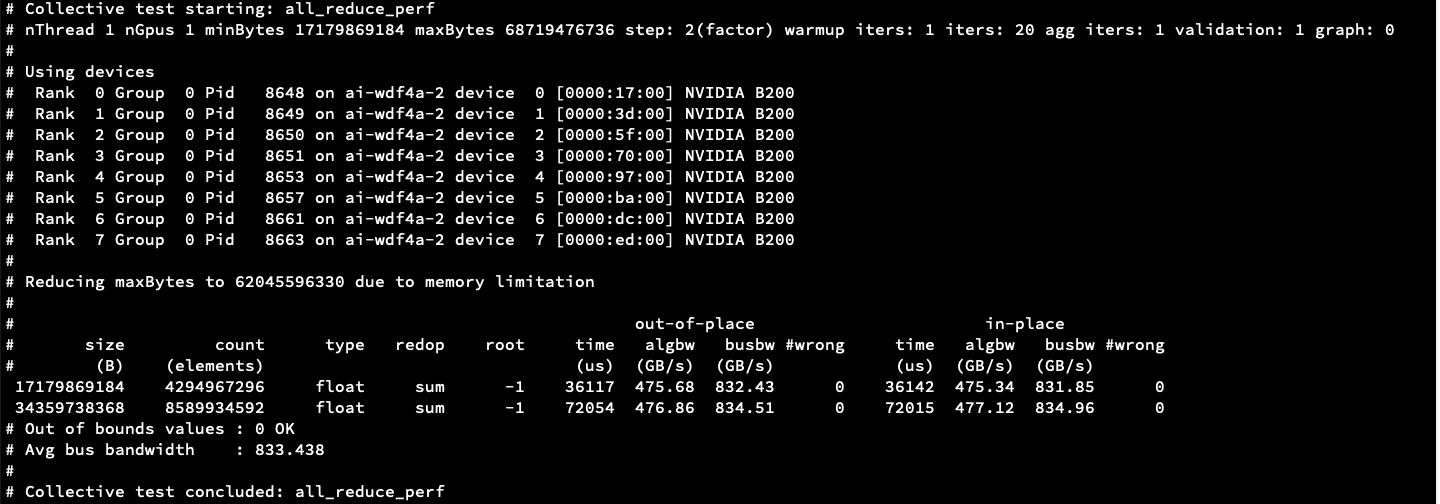
Inter-node test:
mpirun -np 16 -N 8 --bind-to none --map-by slot \
  --mca oob_tcp_if_include <mngt_interface>  \
  --mca btl_tcp_if_include <mgmt_interface>   \
  --mca pml ucx   \
  --mca plm_rsh_args "-p 2222 -o StrictHostKeyChecking=no -o UserKnownHostsFile=/dev/null"  \
  --hostfile /etc/mpi/hostfile   \
  -x LD_LIBRARY_PATH   \
  -x NCCL_DEBUG=INFO   \
  -x NCCL_DEBUG_SUBSYS=NET,INET,GRAPH   \
  -x NCCL_IB_GID_INDEX=3 \
  -x NCCL_SOCKET_IFNAME=<mgmt_interface>   \
  -x OMPI_MCA_coll_hcoll_enable=0   \
  -x NCCL_IB_HCA=^mlx5_2,mlx5_6,mlx5_7,mlx5_8,mlx5_9 \
  -x UCX_NET_DEVICES=mlx5_0:1,mlx5_1:1,mlx5_3:1,mlx5_4:1,mlx5_5:1,mlx5_10:1,mlx5_11:1,mlx5_12:1 \
  /opt/nccl_tests/build/all_reduce_perf -b 16G -e 64G -f 2 -g 1
Output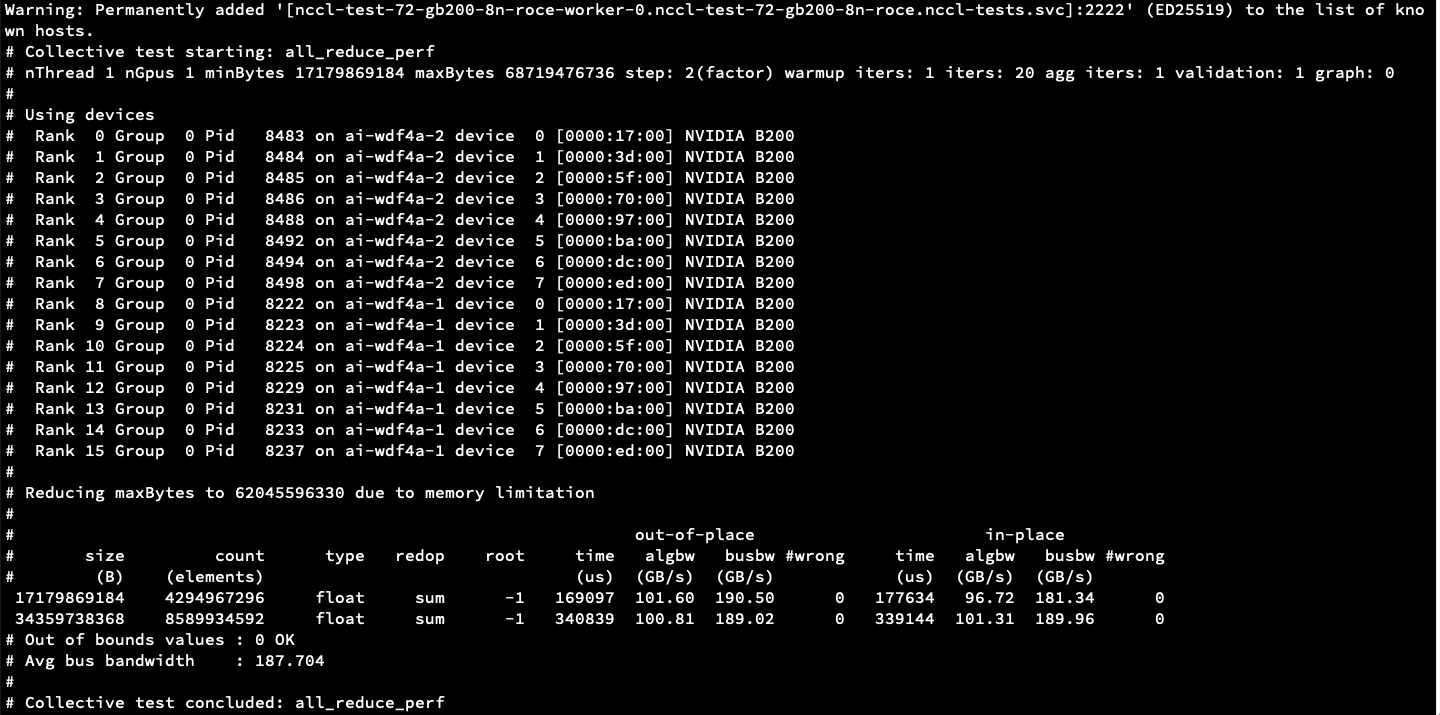
EFA mpirun test command
/opt/amazon/openmpi/bin/mpirun \
  --mca plm_rsh_args "-p 2222 -o StrictHostKeyChecking=no" \
  --mca btl_tcp_if_include 10.250.0.0/19 \
  -x FI_EFA_USE_DEVICE_RDMA=1 \
  -x LD_LIBRARY_PATH=/opt/nccl/build/lib:/usr/local/cuda/lib64:/opt/amazon/efa/lib:/opt/amazon/openmpi/lib:/opt/amazon/ofi-nccl/lib:$LD_LIBRARY_PATH \
  --hostfile /etc/mpi/hostfile \
  -np 16 -N 8 \
  --mca pml ^cm \
  --mca btl tcp,self \
  --bind-to none \
  /opt/nccl-tests/build/all_reduce_perf -b 8M -e 128M -f 2 -g 1
Output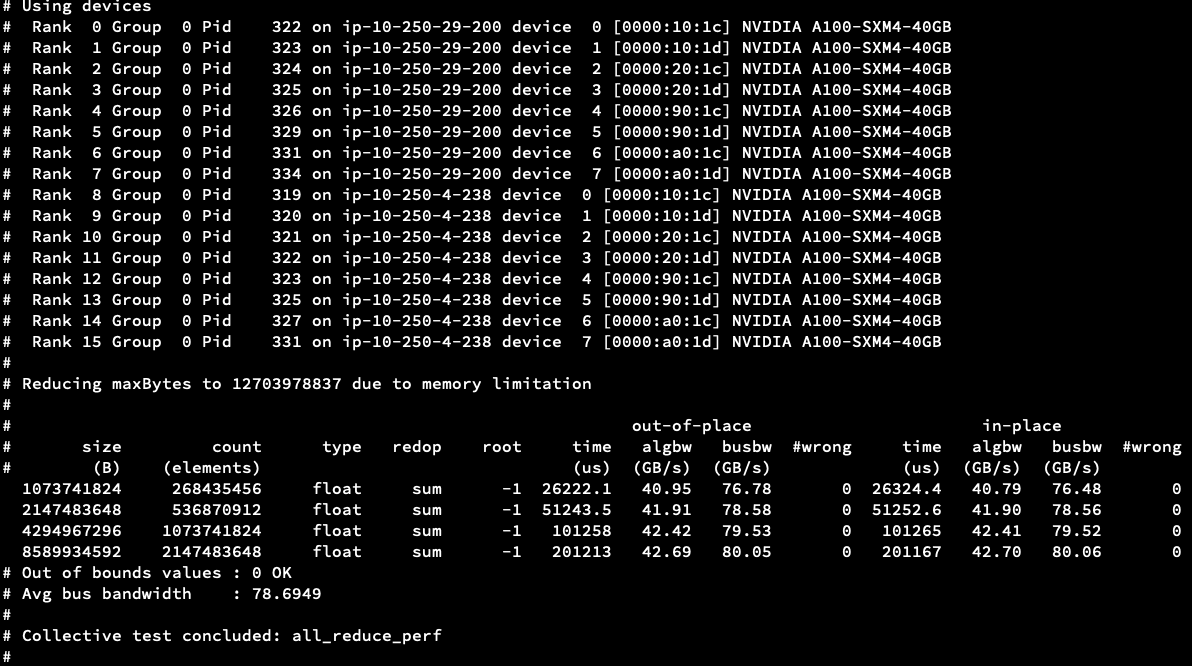
References
GPU Operator : https://docs.nvidia.com/datacenter/cloud-native/gpu-operator/latest/overview.html
Fabric Manager : https://docs.nvidia.com/datacenter/tesla/fabric-manager-user-guide/index.html
Dynamo/Grove :
- https://developer.nvidia.com/blog/streamline-complex-ai-inference-on-kubernetes-with-nvidia-grove/
- https://github.com/ai-dynamo/dynamo/blob/main/docs/kubernetes/README.md
RDMA : https://docs.nvidia.com/datacenter/cloud-native/gpu-operator/latest/gpu-operator-rdma.html
Soft RoCE : https://enterprise-support.nvidia.com/s/article/howto-configure-soft-roce